
Setting up 2FA
Setting up an Authenticator App
Step 1: Select your App


Step 2
Download Google Authenticator from the Google Play Store. Search for 'Google Authenticator' and look for the gray icon shown above.
If you are on the target device you want to install on, or have setup the ability to remotely install to your device, click the link below to get started.
Step 3
Once the app is installed, locate and launch the app. It will again be the same gray icon showcasing a G that you see shown here. Don't be fooled by other fake apps, always make sure you're installing the real deal!
Tip: We recommend adding a shortcut for this application to your homescreen, you may find yourself using it often! If you're installing this on a personal device, feel free to start enabling 2FA on personal accounts around the web too!
With the application now open, you should see a page similar to the one shown here. Tap on 'Continue' or 'Get Started' based on what you see.
If you have already used Google Authenticator before, skip to the 'Add another account' step below.

Step 4
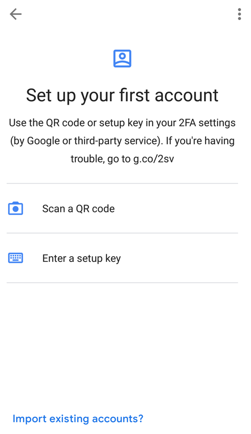
Tap on 'Scan a QR code' to begin adding your account. You may be prompted to allow the application to access your camera, you must tap on Allow.
You should now see a box outline and your camera's view. Point the box outline towards the QR code on your screen and it should automatically add the account.
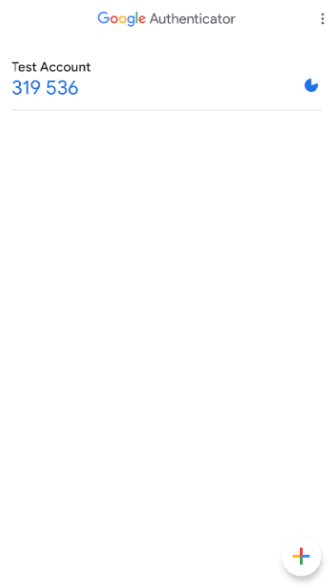
If the scanner screen disappears, that indicates the account has been added and is now visible on the list. You should see a 6-digit code next to the account name and a circle that counts down clock-wise.
Most web services and applications will ask for your current code to verify the partnership with your new authenticator. Enter the code you see on screen before the timer runs out.
Add another account
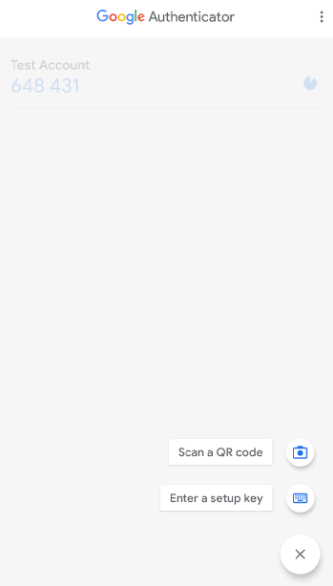
If you wish to add more than one account, you can easily do so by tapping on the plus (+) button on the bottom right of the authenticator screen.
Tap on 'Scan QR code' and face the camera to the QR code that the application or website is displaying.
Once the code is scanned, you should see a new account on your list along with the 6-digit code. Enter it as required to finalize the setup of your authenticator.
Info / Troubleshooting
- All codes rotate every 30 seconds based on a pre-determined timestamp. If the timer is almost up, wait for it to reset before attempting to sign in.
- Your 2FA codes will not work if your timezone and device clock don't match. If they are even 1-2 minutes wrong, the generated codes will be invalid.
- The display name of each item is determined by the website who created the QR code. For example, we call ours 'Virtutech HelpDesk'.
- If you lose the device that your authenticator app is installed on, report this to your manager and to Virtutech as soon as possible. We will assist you in resetting your security settings and starting again.
Step 2
Download Microsoft Authenticator from the Google Play Store. Search for 'Microsoft Authenticator' and look for the blue icon shown above.
If you are on the target device you want to install on, or have setup the ability to remotely install to your device, click the link below to get started.
Step 3
If you have already used Microsoft Authenticator before, skip to Step 4.
Once the download and install is complete, locate and launch the app. It will again be the same blue icon showcasing a padlock with a person that you see shown here. Don't be fooled by other fake apps, always make sure you're installing the real deal!
Greeted with a privacy policy page, tap on Accept to continue.
You will then see a page similar to the one shown here. Tap on 'Skip' in the top right corner for now.

Step 4
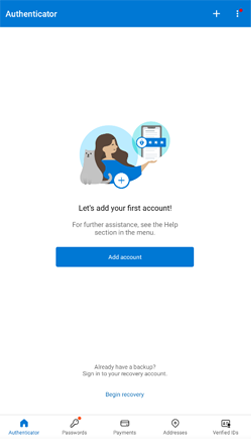
If this is your first time using the app, Tap on 'Add Account'. If you have used it before, instead tap on the + at the top of the screen.
Tap on 'Work or school account' and then tap on 'Scan a QR code'.
Note: You may be prompted to allow the application to access your camera, this is required to read the QR code.
You should now see a box outline and your camera's view. Point the box outline towards the QR code on your computer screen and it should automatically detect the QR Code and disappear.
Step 5
Having scanned the QR code, you should now see a prompt on both your mobile and your computer screen.
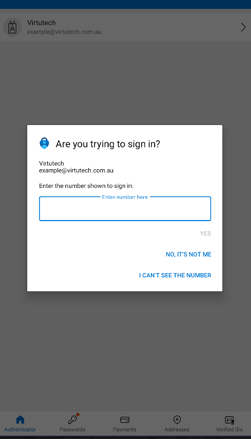
Enter the number shown on your computer into the prompt on your mobile authenticator screen and then tap on YES. Don't take too long though, you don't have long before it expires and you need to start over.
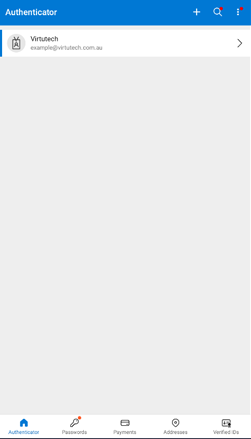
You should now be done, the account should be shown in the list within the authenticator app and ready for login approval.
Moving forward, whenever you sign in to a Microsoft service you will be prompted to enter a number into a prompt on your device for extra security, so make sure you have it nearby.
Add another account
Adding another account is super simple! Simply follow steps 4 and 5 above to add multiple Microsoft accounts.
Info / Troubleshooting
- All codes shown within each account rotate every 30 seconds based on a pre-determined timestamp. If the timer is almost up, wait for it to reset before attempting to sign in.
- Your 2FA codes will not work if your timezone and device clock don't match. If they are even 1-2 minutes wrong, the generated codes will be invalid.
- All Microsoft accounts can make use of the 'enter a code' prompt instead of using the 6-digit generated code. This is easier, faster and more secure.
- If you lose the device that your authenticator app is installed on, report this to your manager and to Virtutech as soon as possible. We will assist you in resetting your security settings and starting again.